
How to finish a podcast automatically with AutoFinish
Use StudioEditor AutoFinish to enhance and level speech, remove filler words and long pauses, mix optional jingles, transcribe the episode, and create its content package.
Updated
Summary. A practical guide to StudioEditor AutoFinish: prepare speech and optional intro and outro files, review the selected stages, run the workflow, inspect the finished timeline and transcript, then edit the generated publishing package before export.
Quick answer. Import or record the episode, place dialogue on Speech tracks, optionally choose intro and outro jingles, then open Tools and select AutoFinish. StudioEditor guides one run through speech enhancement and leveling, transcription, local filler-word review, pause tightening, optional jingle mixing, a complete content package, and project saving before opening the text editor for review.
Why finishing an episode involves more than one automatic action
A raw episode may need voice leveling, pause cleanup, transcription, a music intro and outro, show notes, chapters, and promotional copy. Running every operation separately creates repeated setup and makes it easier to forget a publishing step.
Automation still needs editorial review. A finished workflow should expose what changed, keep the timeline editable, and let the creator verify speech joins, jingle timing, names, quotations, and generated copy before publishing.
Run AutoFinish step by step
Prepare the speech timeline
Import or record the episode and keep hosts and guests on Speech tracks. Remove unusable setup audio and confirm that every active speech clip plays before starting the workflow.
Add optional intro and outro jingles
Open AutoFinish and choose the intro and outro files when the show uses them. Speech begins during the intro fade, and the outro is positioned so roughly four seconds remain after the speech ends when the file is long enough.
Tip. Use headphones and preview the first and last transition after processing; music timing is a creative decision even when placement is automatic.
Review the AutoFinish stages
Confirm the requested workflow before running it. AutoFinish can enhance and level speech, generate transcription and subtitles, remove detected filler words, tighten long pauses, mix the selected jingles, and create the complete content package.
Keep the progress window open
Follow each stage in the AutoFinish dialog. A completed stage reports its actual result, such as transcript word count, pause time removed, mixed jingles, and saved timeline clips.
Review the timeline and text editor
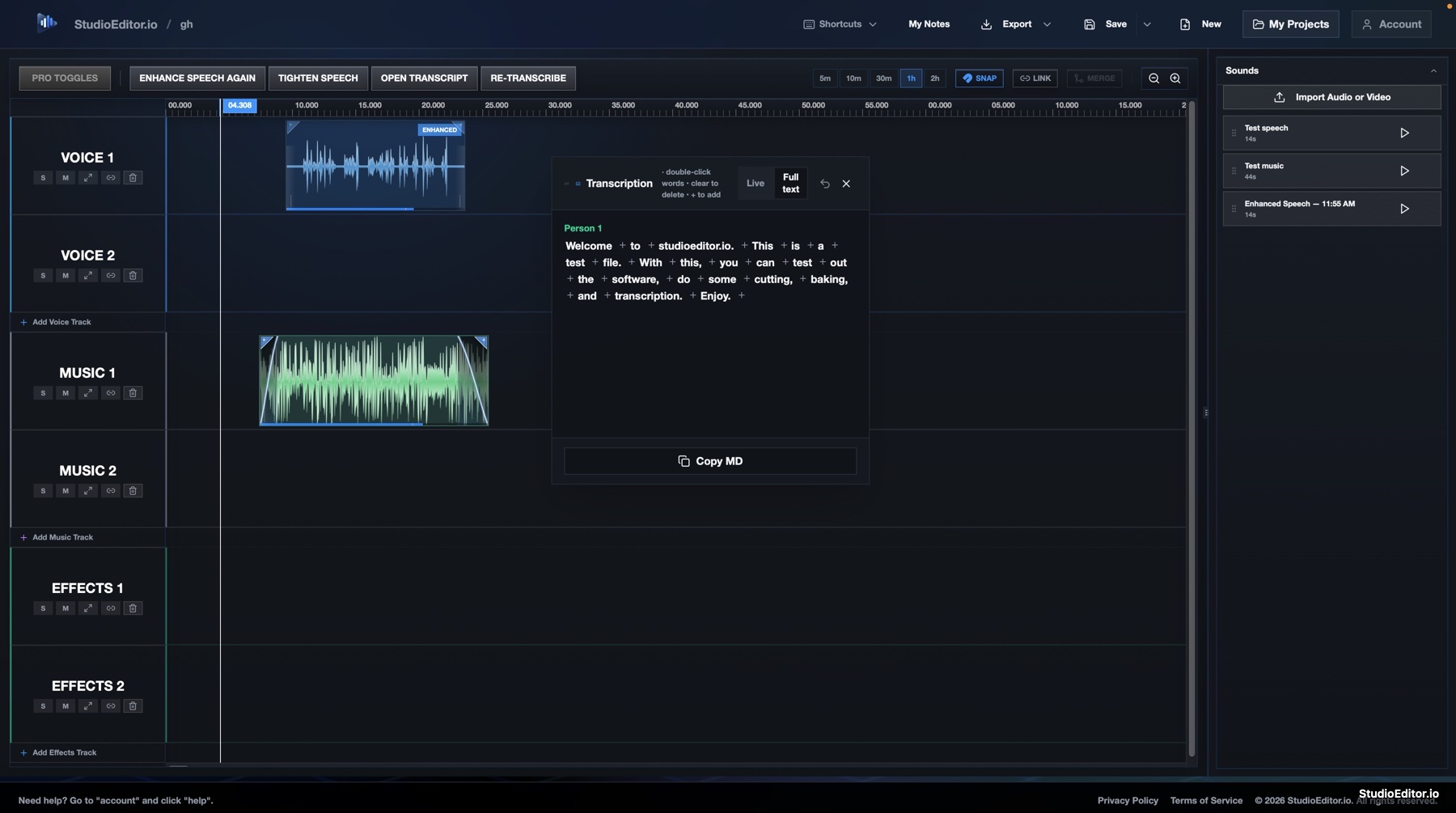
When processing finishes, open the results and listen across speech edits and music transitions. AutoFinish opens the text editor for transcript review; the complete content package remains available from Tools.
Edit before exporting or publishing
Correct transcription errors, verify the generated package, check final loudness, and export only after listening through the episode at normal speed. Use Undo AutoFinish when the complete run should be restored.
Take an episode from raw audio to review
Open the editor, prepare the speech timeline, and use AutoFinish to run the production and publishing stages together.
What AutoFinish combines
AutoFinish coordinates existing StudioEditor tools into one visible workflow rather than replacing the editable project with a hidden final file.
Speech production
Active speech is enhanced and leveled, filler words can be removed from timed text, and long pauses can be shortened while the result remains visible on the timeline.
Show assembly
Optional intro and outro files are added to Music tracks with AutoDuck and timing designed around the first and last spoken words.
Publishing preparation
The completed transcription becomes the source for titles, descriptions, notes, chapters, quotations, social copy, YouTube copy, SEO keywords, and tags.
Frequently asked questions
Does AutoFinish publish the episode automatically?
No. It prepares the editable timeline, transcript, and content package. You remain responsible for reviewing the audio and copy, exporting the final file, and publishing it to the chosen host or platform.
Do I need intro and outro files?
No. Jingles are optional. Leave them out when the show does not use music, or provide one or both files when AutoFinish should place them around the speech.
Does AutoFinish use credits?
Yes. AutoFinish combines speech enhancement, pause and filler cleanup, transcription, and content generation powered by credits. The confirmation flow shows the work being requested before it runs.
Can I undo AutoFinish?
Yes. The completion dialog provides Undo AutoFinish so the pre-run project state can be restored when you want to change the setup and try again.