
How to automatically remove filler words from audio
Detect ums, uhs, and similar hesitation sounds from a timed transcript, review every match, and remove the selected audio while preserving natural speech timing.
Updated
Summary. StudioEditor detects likely filler words locally from an existing timed transcript, selects them for review, and removes only the confirmed words from the audio timeline while updating transcript timing.
Quick answer. Generate a timed transcript, open Tools, and choose Auto-remove filler words. StudioEditor locally selects likely hesitation sounds such as “um” and “uh” for review. Deselect intentional words or false positives, preview the context, and apply the edit only when the retained speech sounds natural.
Why every “um” should not disappear automatically
Filler sounds can slow a delivery, but they can also carry hesitation, emotion, comedic timing, or a natural speaker handoff. Removing every detected match without listening can make a conversation sound abrupt.
Transcript timestamps are an efficient starting point, not a substitute for hearing the edit. A useful workflow detects candidates locally, lets the editor keep false positives, and protects the next spoken word when a confirmed filler is cut.
Remove filler words step by step
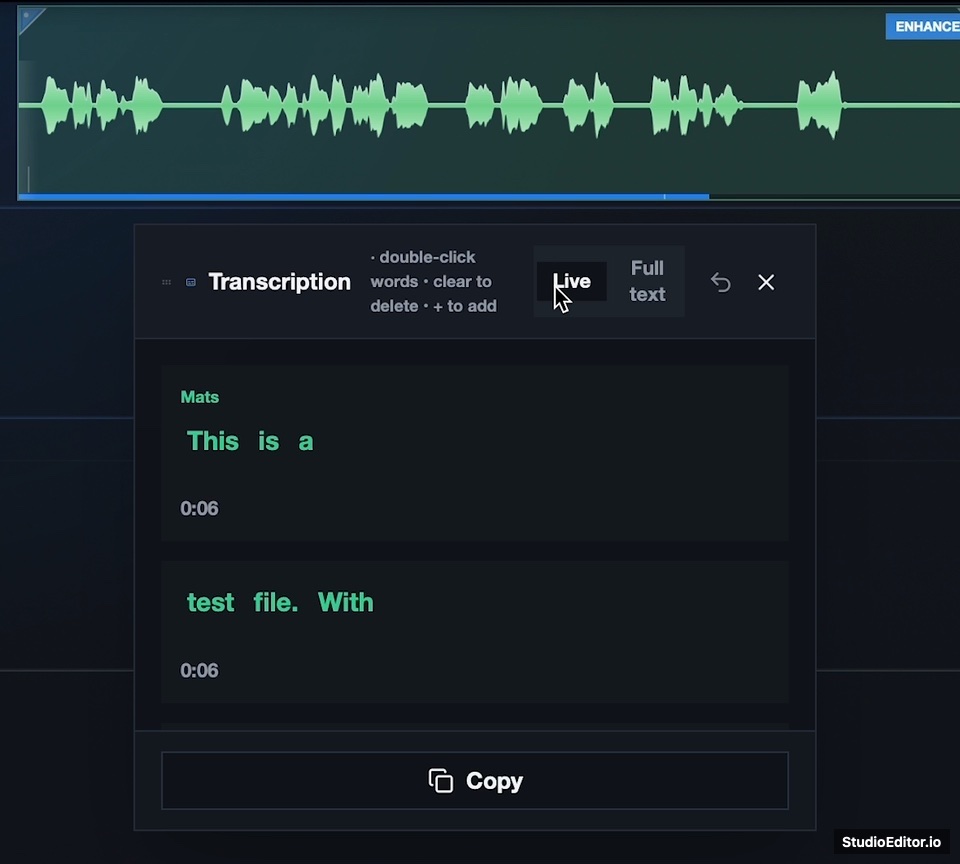
Generate a timed transcription
Place dialogue on Speech tracks and choose Generate Transcription & Subtitles from Tools. Filler detection remains unavailable until timed transcript words are present.
Open Auto-remove filler words
Choose Auto-remove filler words from Tools. Likely fillers are detected in the browser and selected automatically in the review dialog.
Deselect false positives
Read through every highlighted match and click any word that should remain. You can also select or deselect a complete sentence when reviewing a larger section.
Preview speech around the selection
Play from just before each candidate and listen through the following word. Keep fillers that are part of the intended delivery, emotional beat, or conversational response.
Tip. Removing fewer fillers usually sounds more natural than treating every hesitation as a mistake.
Apply and review the timeline edit
Apply the confirmed selection. StudioEditor removes the matching speech, keeps a short pause at the splice, updates later transcript timing, and keeps the project available for normal timeline editing and undo.
Clean the delivery without flattening it
Transcribe the speech, review the detected hesitation sounds, and remove only the filler words that distract from the episode.
How local filler detection works
The detector operates on words and timestamps already present in the project; it does not send the transcript through another detection service.
Local candidate matching
Common hesitation forms and elongated variants are matched against transcript words in the browser and presented as editable suggestions.
Human confirmation
Nothing changes until the selected candidates are applied. Every match can be kept, and additional transcript words can be selected when needed.
Protected speech joins
The cut retains a small lead-in before the following word and leaves a brief pause so the result does not clip the next consonant or force sentences together.
Frequently asked questions
Which filler words can StudioEditor detect?
The local detector recognizes common hesitation sounds such as um, uh, uhm, erm, hmm, and elongated variants. Always review the suggestions because pronunciation and transcription can change what is detected.
Will removing filler words change music timing?
A standalone text edit changes the episode timing after the removed speech. Review any music, effects, or transitions that follow the edit and confirm they remain aligned before export.
Does filler detection itself add an API cost?
No additional external detection request is made. The tool works locally from the existing transcript, although generating the required timed transcription uses credits.