
How to edit audio by deleting transcript text
Learn how to remove spoken words or sentences from podcast audio by editing its transcript while keeping the timeline and captions synchronized.
Updated
Summary. Use StudioEditor text-based editing to select transcript words or whole sentences, preview the selection, and remove the matching speech from the timeline with a natural pause at the edit.
Quick answer. Generate a timed transcript, open Tools and choose Text-based editing, then select individual words or complete sentences in the separate editing dialog. Preview the selection, apply the edit, and StudioEditor removes the matching timeline audio, leaves a short natural pause, protects the beginning of the next word, and updates the remaining transcript timing.
Why transcript-based cuts still need careful boundaries
Editing spoken audio from text is faster than hunting for every phrase in a waveform, especially when removing a repeated thought, false start, or unwanted sentence from a long conversation.
Speech does not begin and end at perfectly clean transcript timestamps. A useful text editor must protect the next word, avoid leaving fragments of the removed sentence, and leave enough space for the result to sound intentional rather than rushed.
Edit podcast audio from its transcript step by step
Prepare and transcribe the speech
Put spoken recordings on Speech tracks, enhance them when cleanup is needed, then choose Generate Transcription & Subtitles from Tools. Text-based editing remains unavailable until timed transcript words are ready.
Open Text-based editing
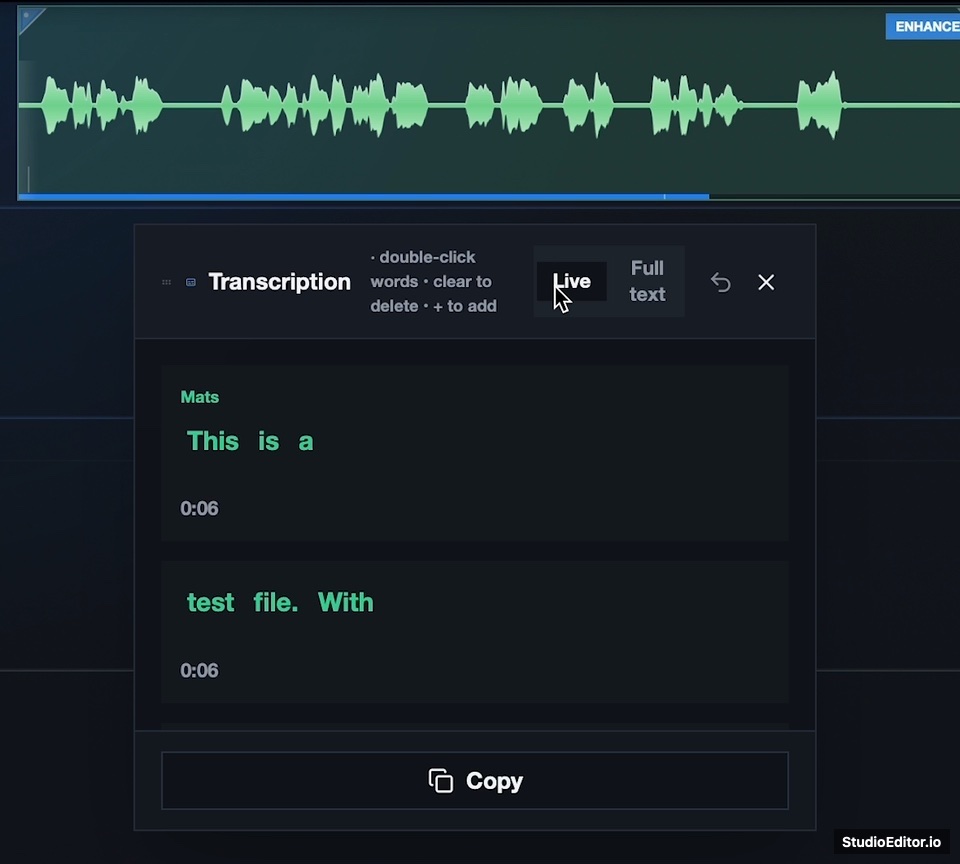
Open Tools above the timeline and choose Text-based editing. This opens a separate editing dialog, so corrections to caption spelling and layout remain in the existing captions editor.
Select words or remove a sentence
Click an individual word to select it, use Shift-click to extend a selection, or choose the sentence action when the whole sentence should be removed. The edit remains provisional until you apply it.
Preview the selection in context
Play from just before the selected speech and listen to the handoff into the next retained word. Check that the chosen text matches the spoken material you intend to remove.
Tip. Transcript timing is a guide. Always listen before applying a cut that changes meaning, rhythm, or a speaker handoff.
Apply the edit to the timeline
Apply the selected edit once it sounds right. StudioEditor cuts the matching audio, ripples later timeline content, preserves a lead-in before the next word, and inserts a short pause at the splice.
Review or undo the result
Listen across every new join at normal speed. Use the Undo text edit action if a word sounds clipped or the pause changes the intended delivery, then make a smaller selection and try again.
Make the rough cut from the words
Open the audio editor, transcribe the speech, and remove unwanted words or sentences without searching through the waveform by hand.
How StudioEditor handles a text-based cut
Text-based editing changes the audio timeline and timed transcript together while keeping caption correction as a separate workflow.
Protected word boundaries
The cut keeps a short lead-in before the next retained word so consonants that begin slightly before their transcript timestamp are not clipped.
A natural splice pause
StudioEditor leaves a brief half-second pause where speech was removed instead of forcing both sides together immediately.
Synchronized timeline timing
Later clips and remaining transcript words move by the net removed duration, keeping playback, waveform placement, and timed text aligned.
Frequently asked questions
Does deleting transcript text cut the audio?
Yes, in Text-based editing mode. Applying the selection removes the matching speech from the timeline. Correcting text in the captions editor remains a caption-only change.
Why does StudioEditor leave a pause after the cut?
A short pause keeps separate thoughts and sentences from colliding unnaturally. StudioEditor currently inserts a half-second pause and protects a small lead-in before the next retained word.
Can I remove a whole sentence at once?
Yes. Use the sentence removal action, or select a custom range of words when only part of the sentence should be removed.
Does text-based editing use credits?
The feature requires a timed transcription, and creating that transcription uses credits. Applying text-based timeline edits to an existing transcription does not start another transcription pass.