
How to automatically detect and censor profanity in audio
Detect possible profanity during transcription, then review each timed match and bleep or mute it without changing the episode timing.
Updated
Summary. StudioEditor carries detected offensive-language matches from transcription into a timed review workflow. Confirm the matches, choose a generated bleep or silence, fully cover very short words, retain a brief onset and ending on longer words, and preserve the duration and placement of every other timeline clip.
Quick answer. Generate a new timed transcript, open Tools, and choose Automatically detect & censor profanity. StudioEditor preselects detected offensive-language matches. Deselect false positives, choose Bleep or Mute, and apply the result; very short words are covered completely, while longer words retain a brief onset and ending without rippling the timeline. Bleep adds a locally generated tone on an Effects track.
Why profanity detection needs a review step
An offensive-language model cannot understand every quotation, accent, language, or editorial context. Automatic detection can still miss a word or flag language you intend to keep.
Censoring should also preserve timing. Removing a profane word with a ripple cut can shift music, chapters, captions, and later speech, while a mute or bleep can cover the same duration without moving the episode.
Detect and censor profanity step by step
Create and proofread the timed transcript
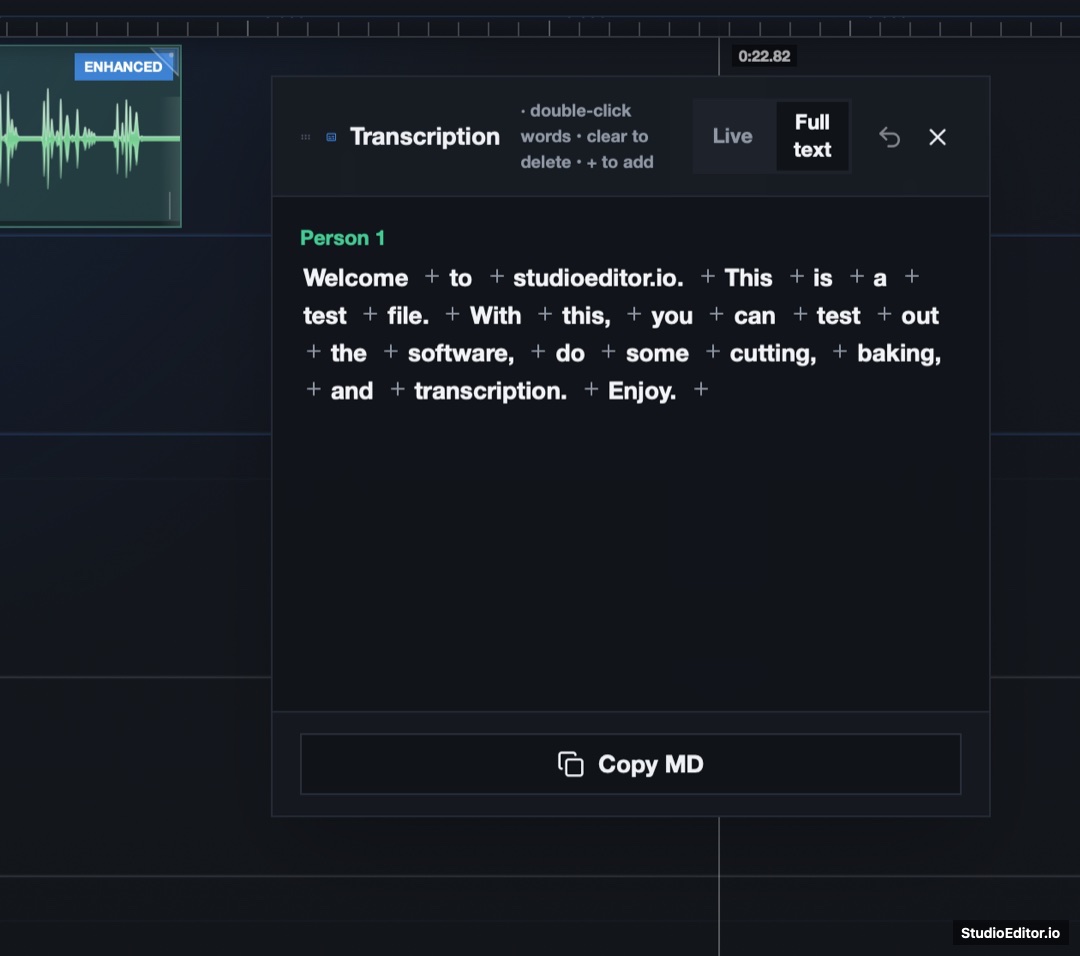
Choose Generate Transcription & Subtitles from Tools. Offensive-language matches are returned with the timed transcript so StudioEditor can align every match to the audio.
Open the profanity detector
Open Tools and choose Automatically detect & censor profanity. Detected words are selected in a separate review dialog.
Review every selected word
Deselect quoted material, names, harmless language collisions, or any word you intend to keep. Select an additional word manually when the transcript contains a spelling the detector did not recognize.
Tip. Listen to the whole sentence rather than trusting an automatic classification alone.
Choose Bleep or Mute
Choose Bleep to cover the speech with a generated tone on an Effects track, or Mute to leave silence for the same duration. Both options retain a very short word onset for a natural boundary and preserve later timeline placement.
Apply, listen, and undo if necessary
Apply the selected matches and listen across each boundary. StudioEditor changes the transcript display to [bleep] or [censored] and provides an Undo censoring action when a range needs adjustment.
Review the words before covering the audio
Use automatic detection to find candidates quickly, then make the final editorial decision for every bleep or muted word.
How StudioEditor censors a detected word
Offensive-language detection happens during transcription. StudioEditor then keeps the review and bleep editing on the local timeline.
Provider-detected offensive language
StudioEditor uses mild and strong offensive-language matches returned during transcription instead of maintaining language-specific word lists. The review step remains essential for quotations and context.
Non-ripple speech censoring
The active speech clip is divided just after a brief word onset and the rest of the selected range is muted. Music, effects, later speech, and the total episode length stay in place.
Local bleep source
Bleep mode creates a short tone in the browser, places it on an Effects track, and saves it with the project like other local timeline media.
Frequently asked questions
Is profanity detection completely automatic?
Detection is automatic, but censoring is not applied without confirmation. StudioEditor selects likely matches and expects you to review false positives, missed spellings, quotations, and context.
Does censoring move the rest of the episode?
No. Profanity censoring mutes the matching timed range rather than deleting time, so later speech, music, effects, and chapter positions remain where they were.
Does the bleep remove the entire beginning of the word?
Very short detected words are covered completely. Longer words preserve a very short onset and ending while the middle is bleeped or muted, keeping both edit boundaries sounding more natural.
Does the profanity detector create an additional processing cost?
Yes. Offensive-language detection adds a 30% surcharge to the base transcription request. Review and bleep generation remain local and do not add another provider request.
Which languages are supported?
Detection follows the languages supported by the transcription model rather than a fixed StudioEditor dictionary list. Accuracy varies by language, accent, context, and transcript quality, so every match still requires review.