
How to record and edit your first podcast
Plan a short episode, test your microphone, record in a browser, make a first edit, and export or publish your podcast.
Updated
Start with a short outline and a quiet room. Record a test, listen back with headphones, then record the episode. In StudioEditor, trim the start and end, review the dialogue and export a finished file from a free account.
Plan an episode you can finish
Choose one question the episode will answer. Write a one-sentence opening, three topics to cover and a closing line. For an interview, share those topics with the guest and agree on what may be published.
A short pilot lets you check your room, microphone and editing workflow before committing to a longer episode. For example, record a five-minute interview with an opening, two questions and a closing.
From a microphone test to a finished episode
Choose a quiet place and put on headphones
Close noisy apps, silence notifications and place the microphone at a comfortable speaking distance. Headphones keep playback and remote voices out of the microphone.
Test ordinary speech and your loudest line
Allow microphone access and confirm that the intended input is selected. Use the microphone test, then make a short recording. Listen for hum, echo, clipping or the wrong microphone before recording the full episode.
Record the episode on a Speech track
Open the audio editor in a desktop browser and choose Record. If you make a mistake, pause briefly and repeat the whole sentence. The gap gives you an edit point that is easy to find on the waveform.
Make one pass for the story and one for sound
Trim setup noise and repeated takes first. Keep pauses that give the listener time to follow the conversation. If you add music, use a separate track and check that every word remains clear when the music plays.
Export and listen to the finished file
Save the project and export the mixed episode. Listen to the export on headphones and a phone speaker. Check the opening, the joins and the last few seconds before you share a review link or publish.
Start with a short recording
Create a free account to record, edit and export your first episode in StudioEditor.
What the free account covers
A short pilot can go from recording to a finished file using the free tools in the editor.
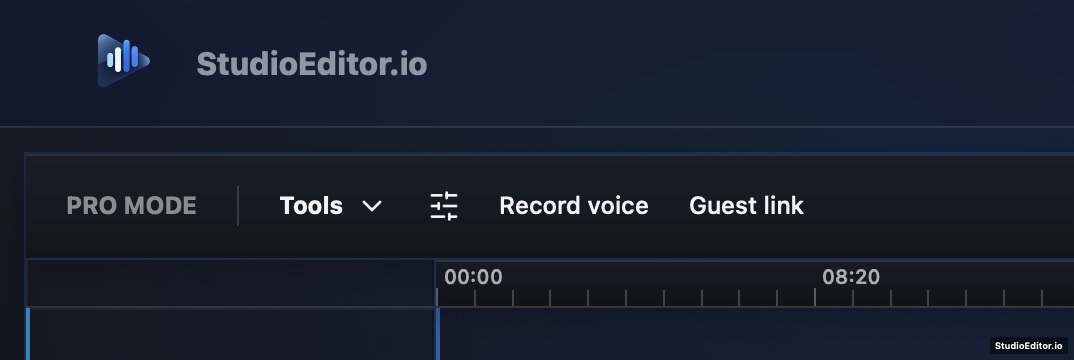
Recording and editing
Record in the browser, keep dialogue and music on separate tracks, trim clips and export the finished mix.
Optional cleanup and transcripts
If you need speech enhancement or a timed transcript, check the processing estimate before using credits. Listen to the result before publishing.
Review and delivery
Send a private review link for feedback. When the episode is ready, export a file for your host or publish a StudioEditor episode page.
Frequently asked questions
Do I need to buy a microphone to start?
You can start with a microphone you already have. Test it in a quiet room and listen back. If the sound is clear at a comfortable distance, use it for the pilot.
Can I record a guest in another location?
Yes. Save the project and send the private Guest Link. StudioEditor supports a host and up to three guests, with each guest take placed on a separate track.
Do I need credits to export an episode?
No. Recording, timeline editing and exporting are included with a free account. Optional speech enhancement and transcription use credits.